Product photos for your online store
Remove product backgrounds for white backdrops and new scenes
Remove a distracting background, prepare a clean product image, or build a new scene. Keep editing in one place, and handle a whole collection with Bulk Editing.
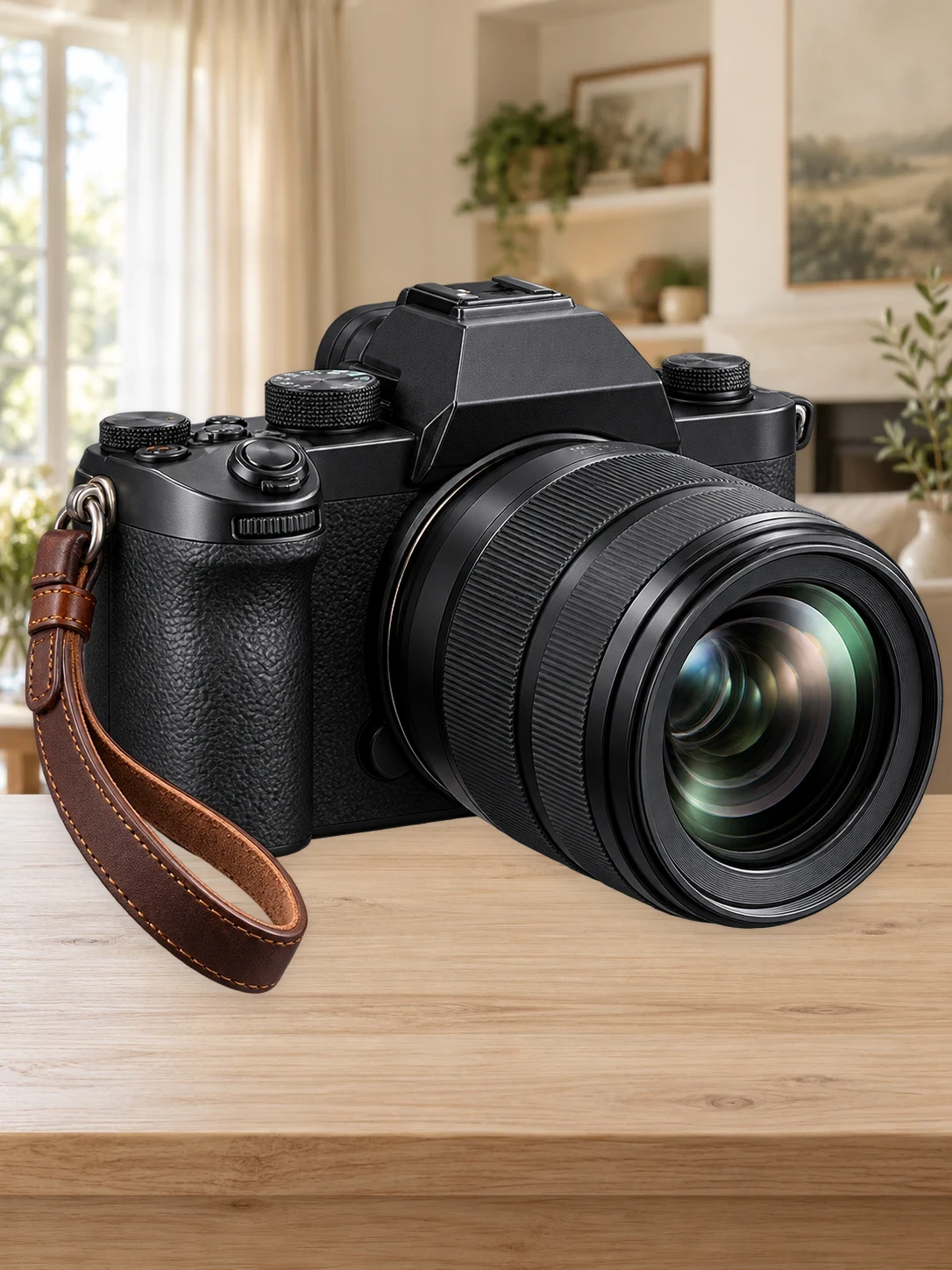
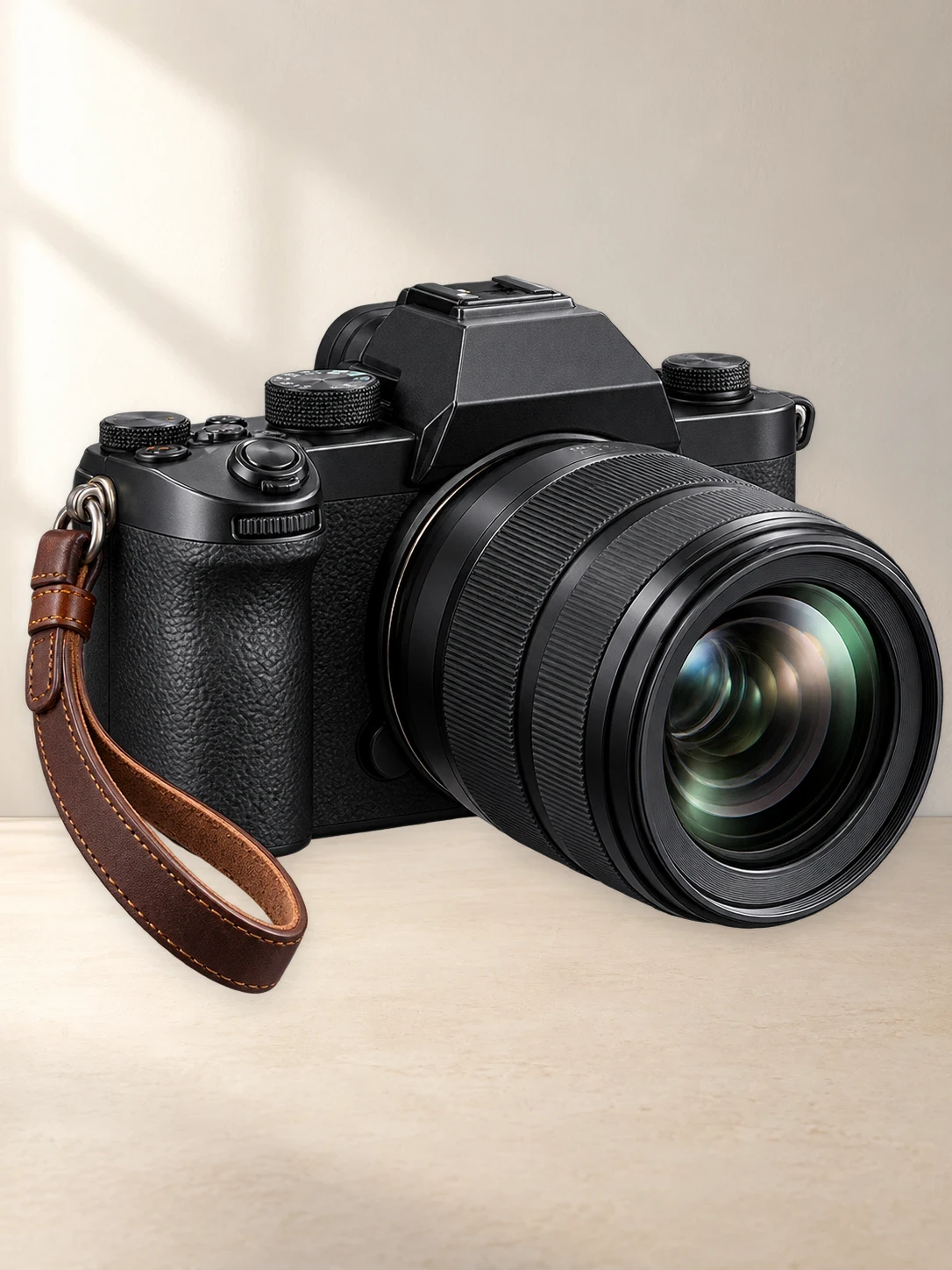
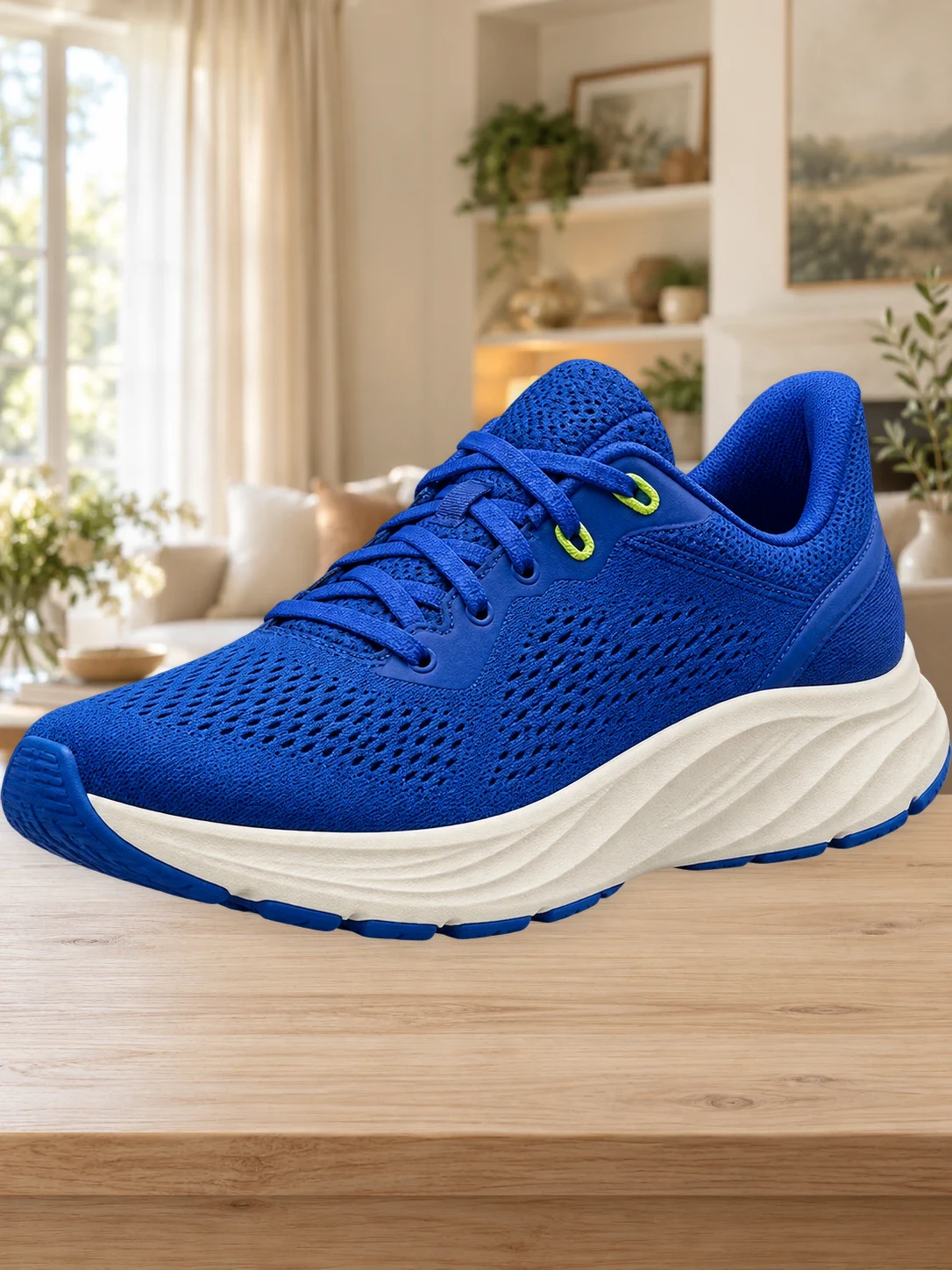
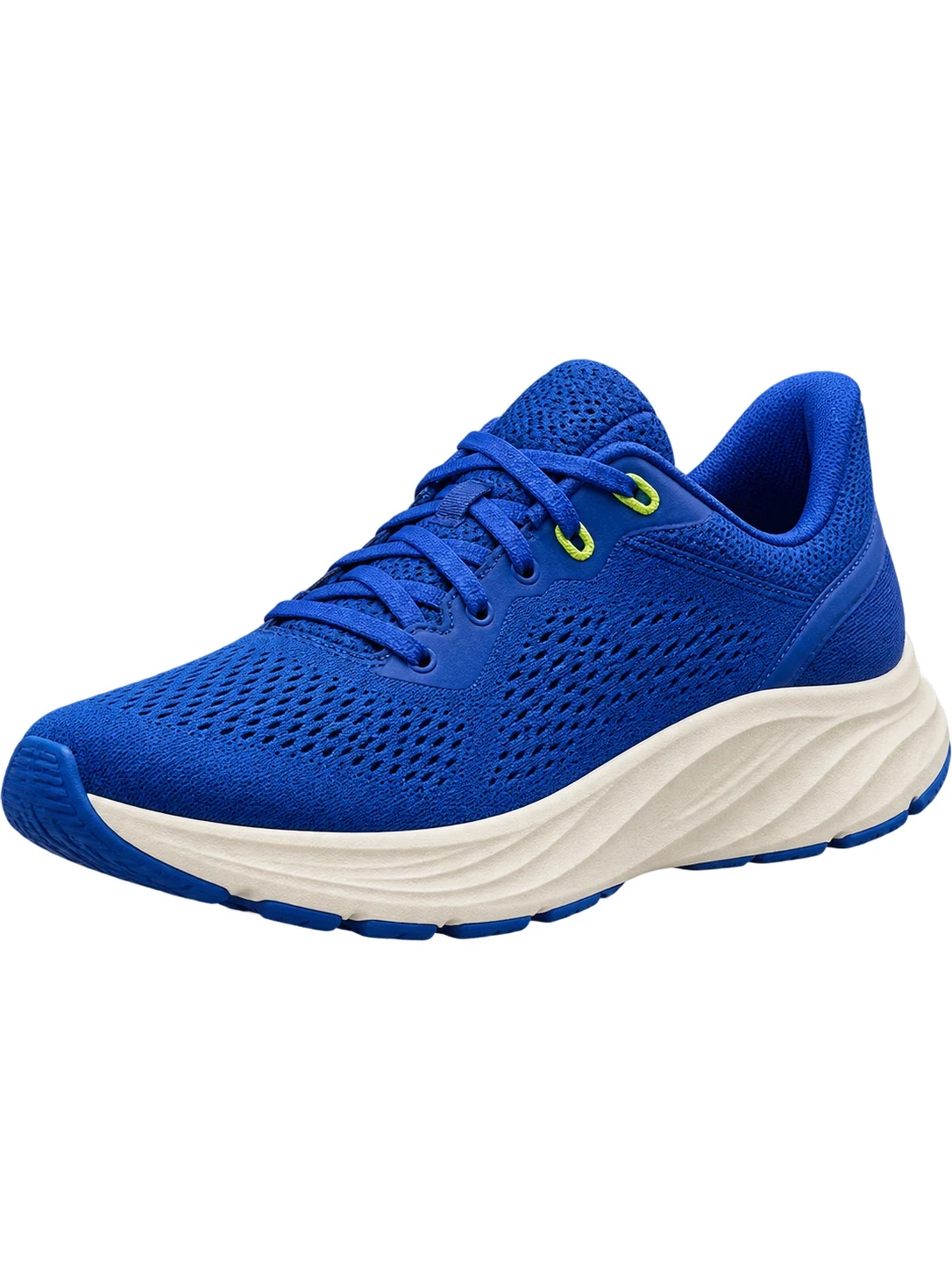
A clean background. A clearer product.
Remove the original background and keep your product ready for a white backdrop or a transparent export. Use the cutout brush to refine edges before downloading.
Choose a background color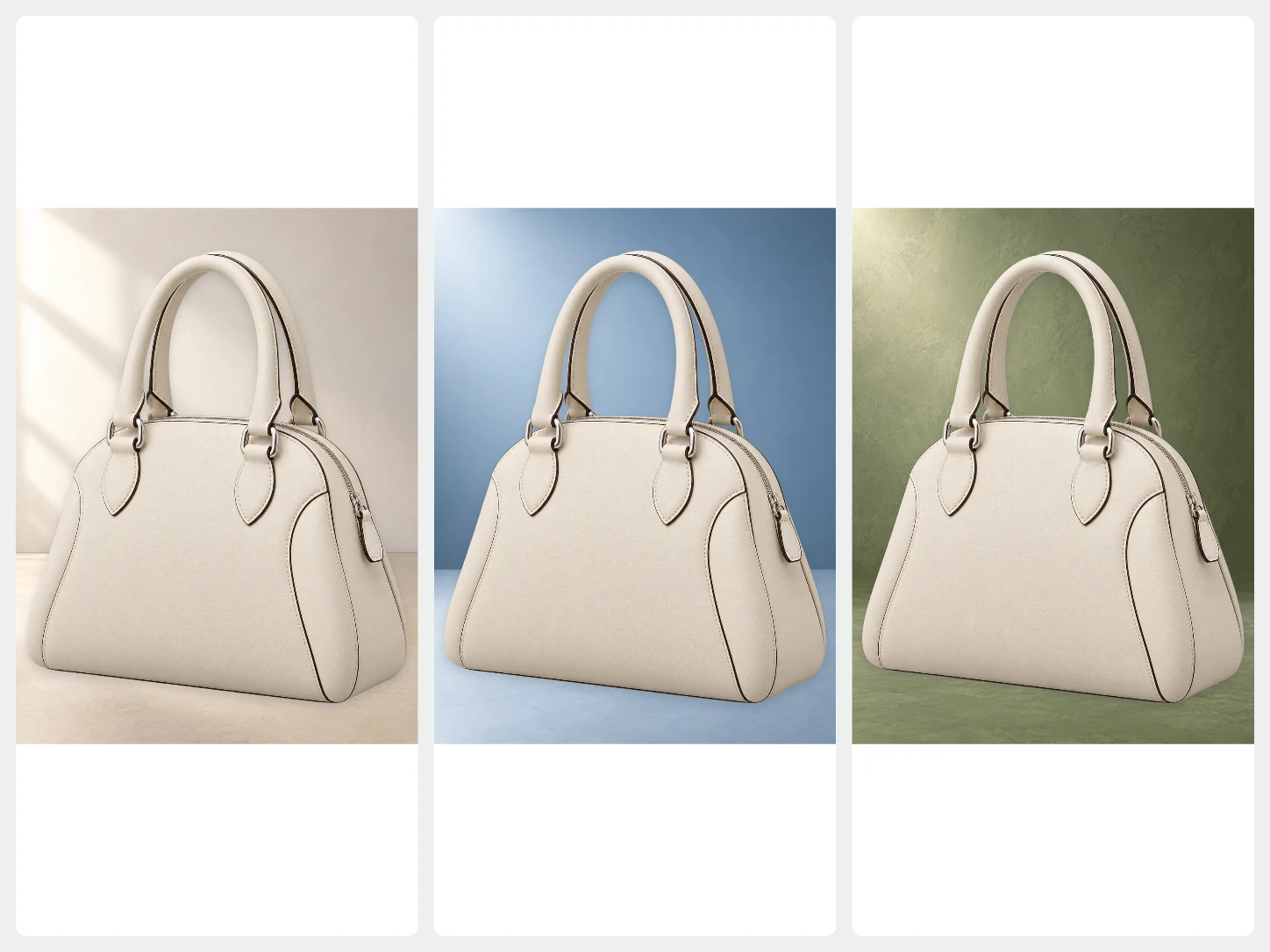
One product, different settings.
Choose a photo background or describe a new setting to generate with AI. Your cutout stays separate from the background, so you can keep adjusting the composition.
Generate an AI background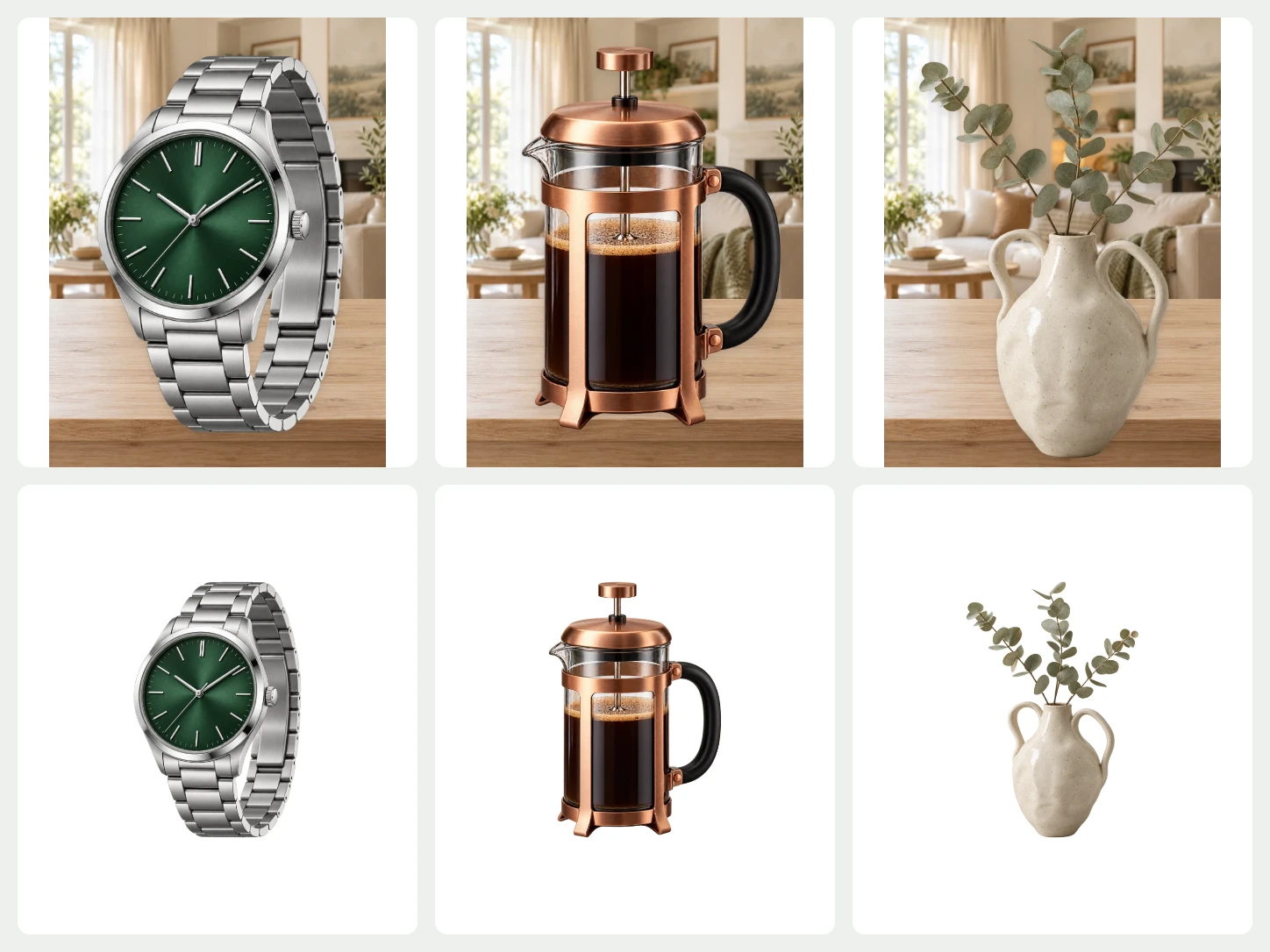
Give your whole collection a matching look.
Select multiple images and apply backgrounds, templates, canvas sizes, and placement together. Review individual images and download the completed selection as a ZIP.
Bulk Editing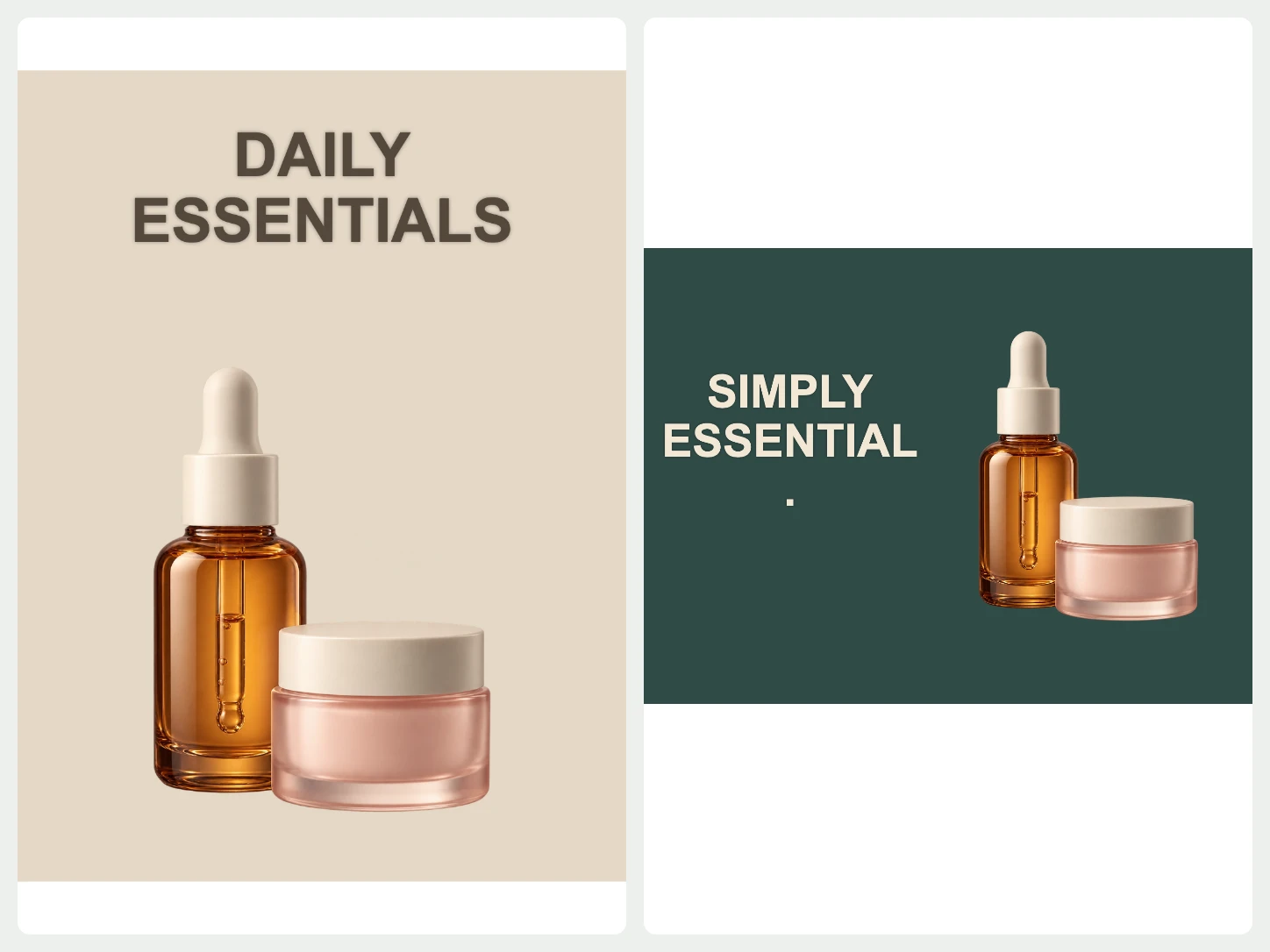
Take the product into your next design.
Use a template, add a text layer, and crop the result for a product feature, social post, or promotion. Keep the product and editable design elements in the same workspace.
Explore templates and textFrom your photo to a finished image
- 01
Start with your photo
Choose one image to remove its background. For a whole set, open Bulk Editing.
- 02
Make it fit your purpose
Change the background, refine the cutout, or add text and a layout. Review the image as you edit.
- 03
Download the finished image
Export PNG, JPG, or WebP. Use PNG or WebP when you need a transparent background.
Common questions about Bgbye
Can I use the same product photo for different designs?
Yes. Keep the cutout transparent, choose a color or photo background, and continue with templates, text, or a crop. Review the finished image against the requirements of the place you will publish it.
Can I upload more than one image?
Yes. The home page handles one image at a time. To process multiple images together, use Bulk Editing. It requires an account and image credits.
Which image types can I upload?
You can upload PNG, JPG, JPEG, WebP, or AVIF images.
Can I review the result before I download it?
Yes. You can preview the result, compare the edges, and download only when it looks ready.