A new look for your pet photos
Remove pet photo backgrounds and create new designs
Cut out your pet, check fur and fine edges, and try a new background. Turn the result into a portrait or a personal design.
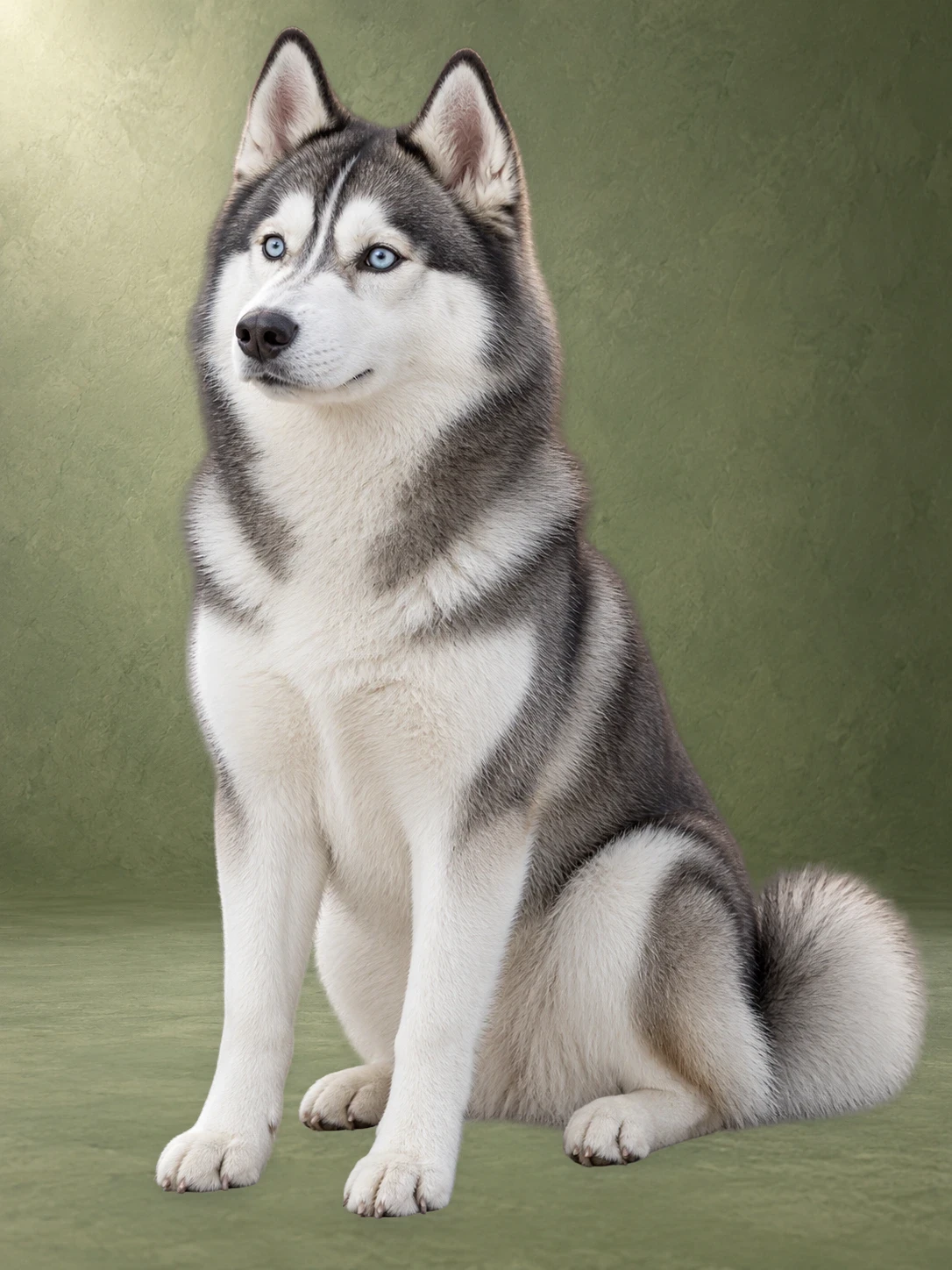
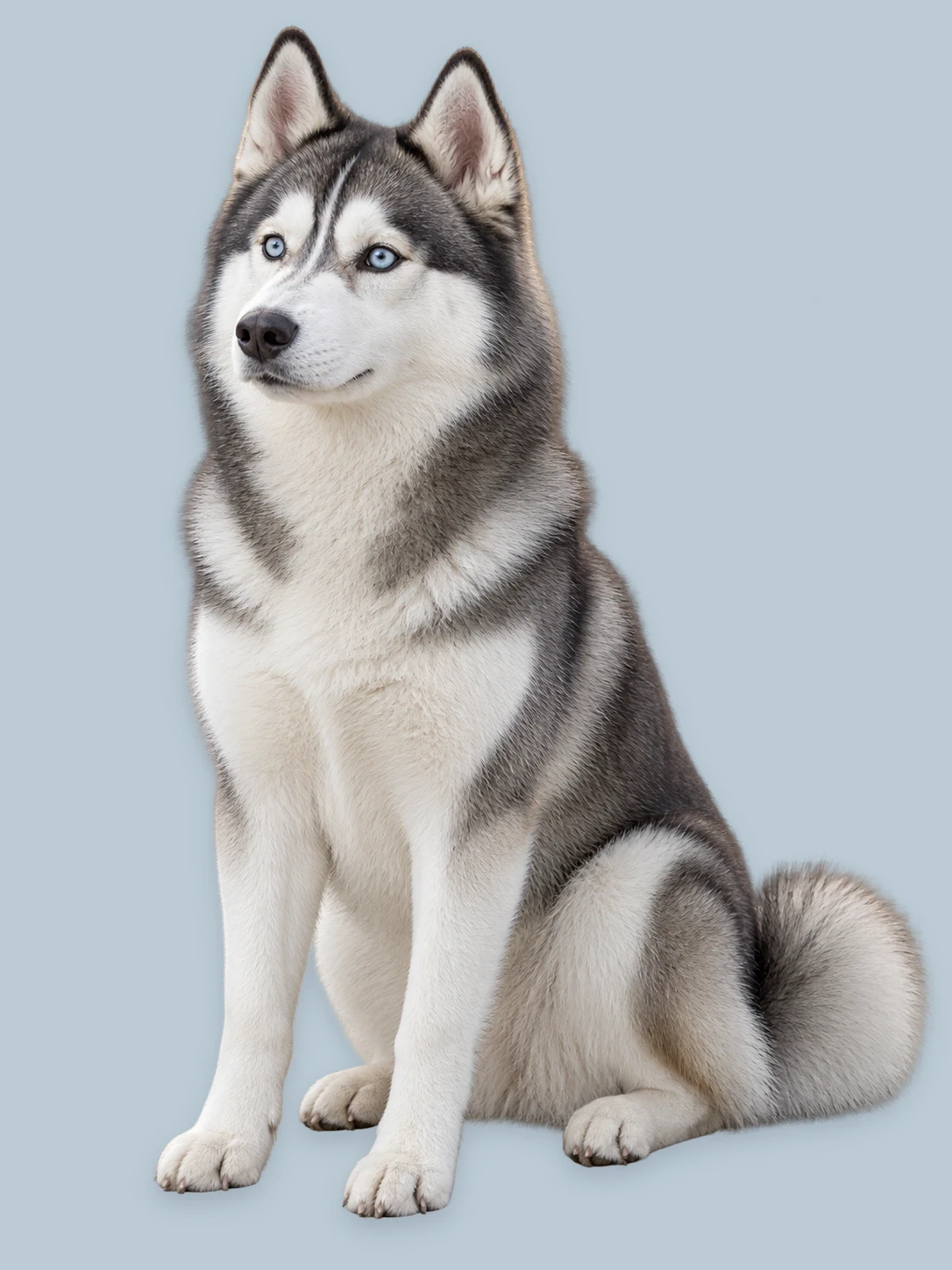
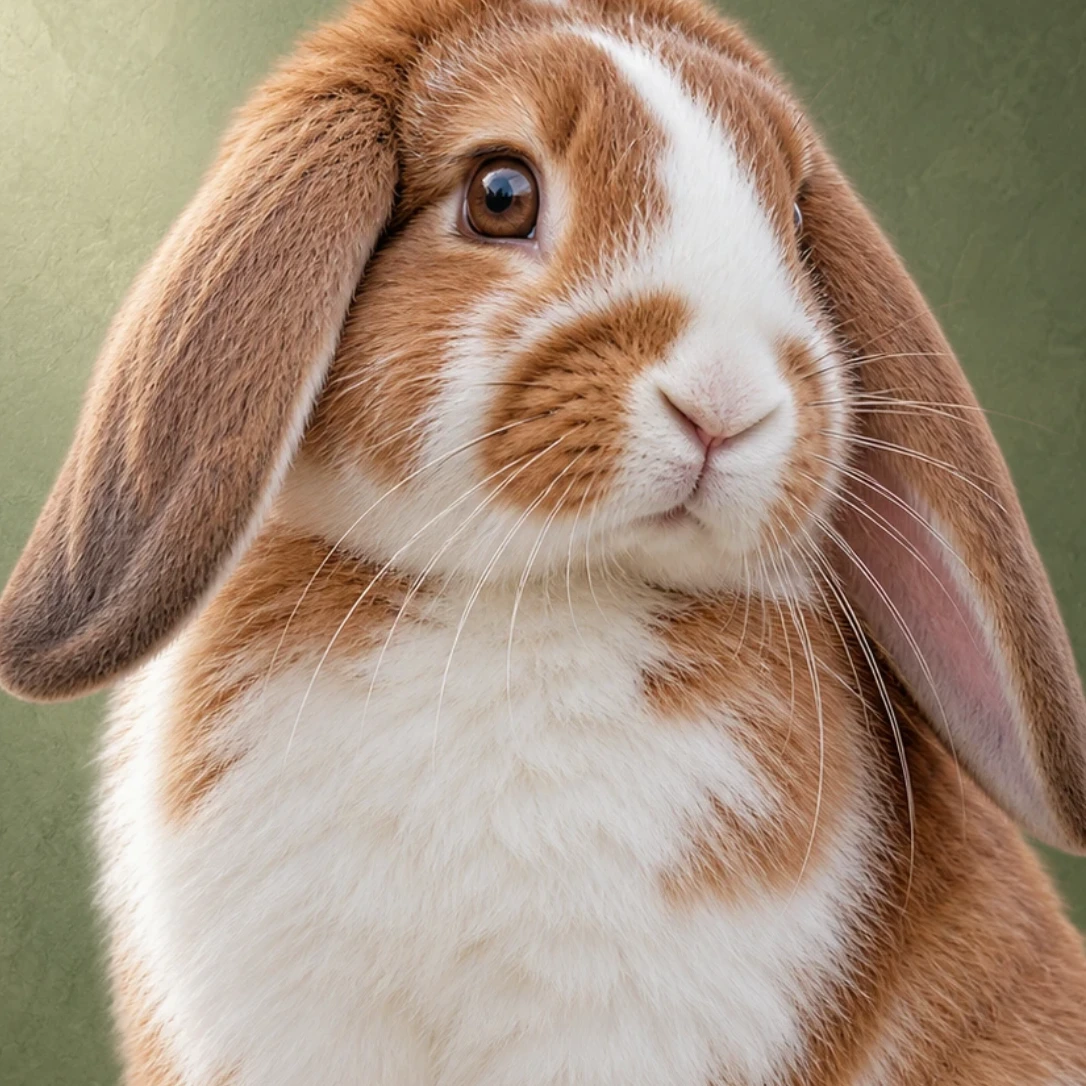
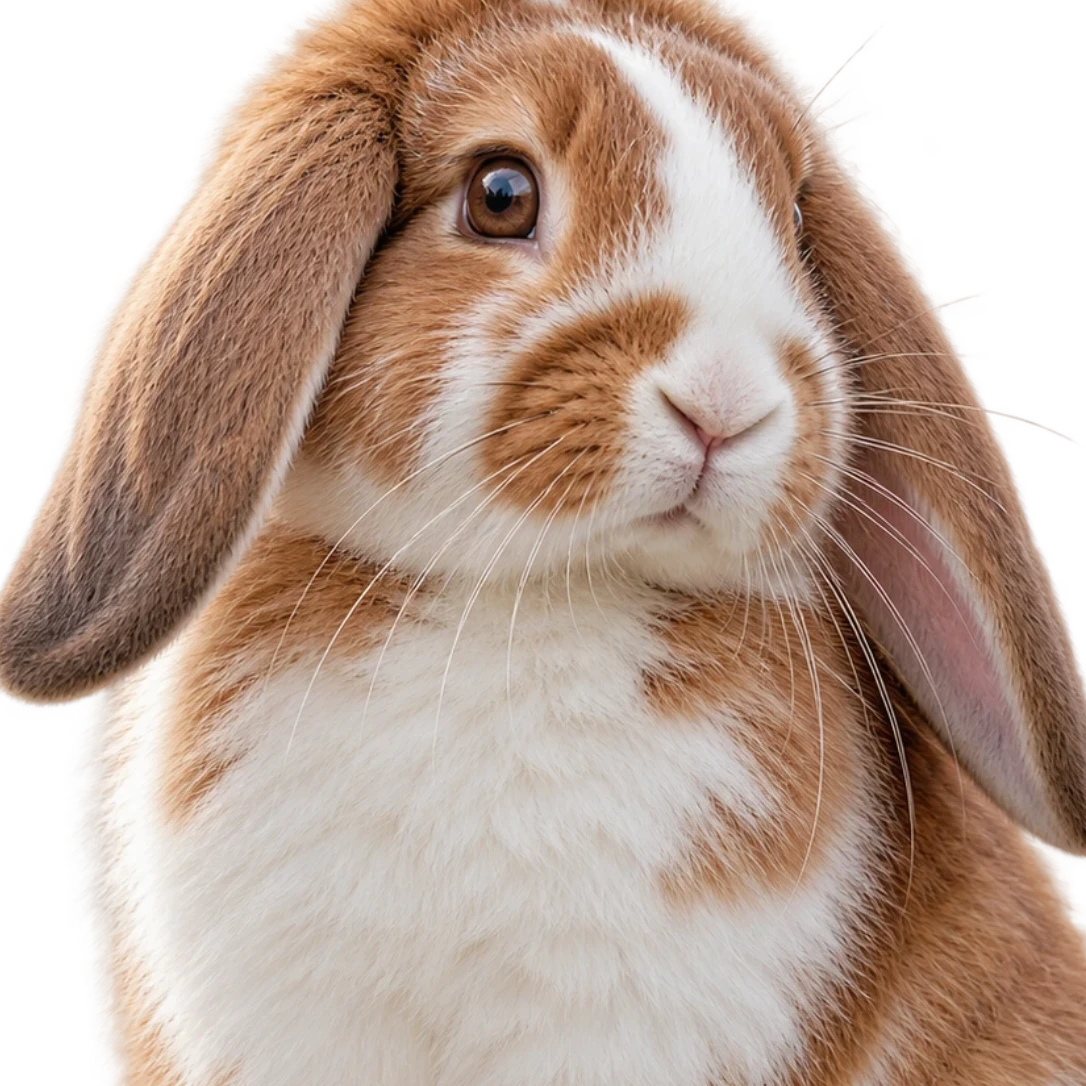
Check and refine fur edges
Check ears, paws, tails, and fur against the original image. Refine the cutout with the brush when an area needs adjustment.
Refine your cutout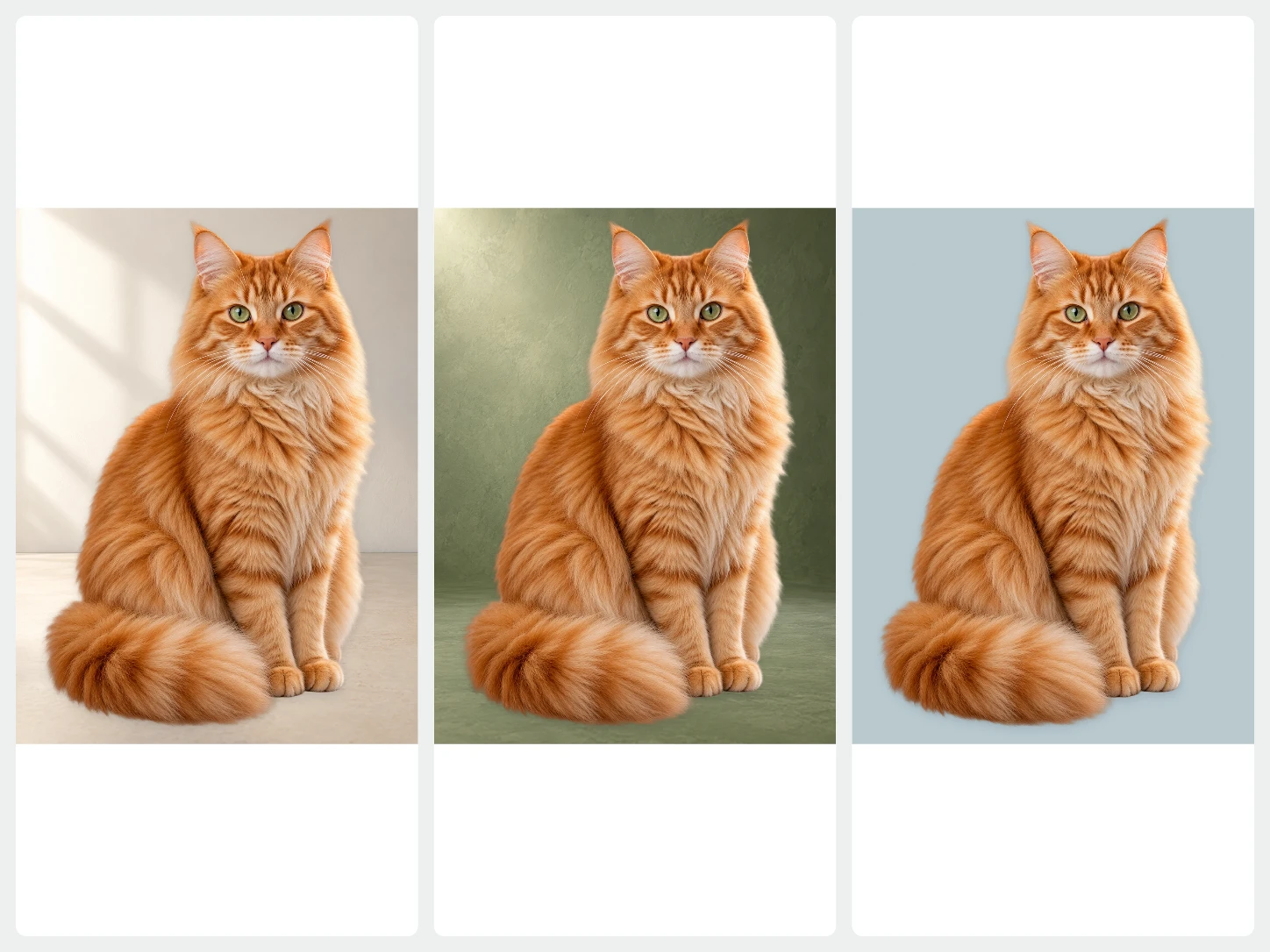
Give the same pet a different backdrop.
Choose a photo or a simple color behind the cutout. Keep the subject intact while trying different compositions.
Change the background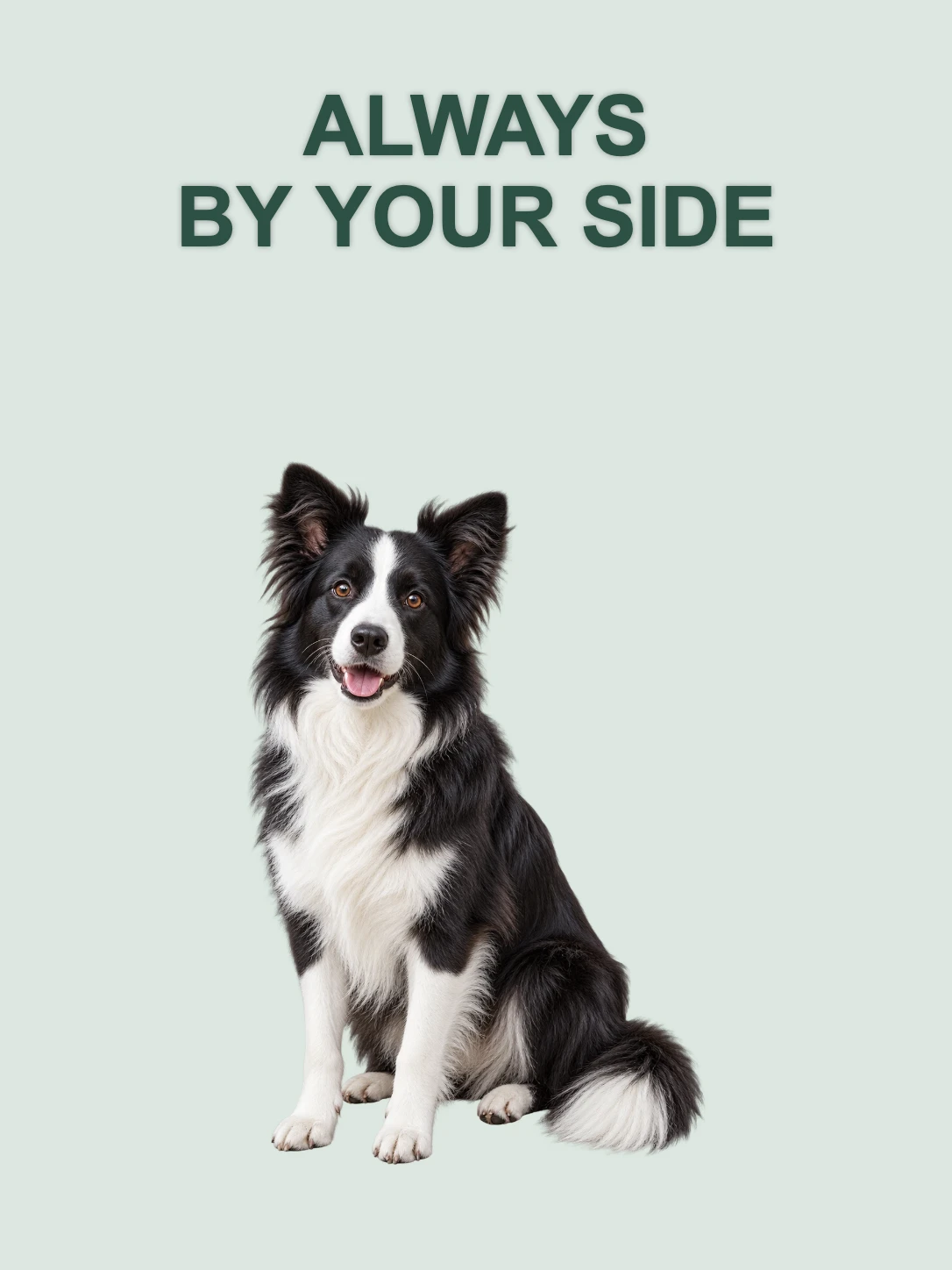
Make something personal.
Add text and a template to your pet cutout. Arrange the result for a personal post, greeting, or keepsake image.
Explore templates and textFrom your photo to a finished image
- 01
Start with your photo
Choose one image to remove its background. For a whole set, open Bulk Editing.
- 02
Make it fit your purpose
Change the background, refine the cutout, or add text and a layout. Review the image as you edit.
- 03
Download the finished image
Export PNG, JPG, or WebP. Use PNG or WebP when you need a transparent background.
Common questions about Bgbye
How can I check fur edges?
Compare the cutout with the original and try a contrasting background color. Use the erase and restore brush for adjustments before downloading.
Can I upload more than one image?
Yes. The home page handles one image at a time. To process multiple images together, use Bulk Editing. It requires an account and image credits.
Which image types can I upload?
You can upload PNG, JPG, JPEG, WebP, or AVIF images.
Can I review the result before I download it?
Yes. You can preview the result, compare the edges, and download only when it looks ready.